Linear Integration
Connect your Linear workspace to turn Kai vulnerability findings into trackable issues. Each issue is routed to the right team and project, with full exploit details and fix suggestions included.
Connecting Linear
From the Web Dashboard
- Go to your workspace in the web dashboard
- Navigate to Integrations
- Click Connect on the Linear card
- Authorize Kai through Linear OAuth
- You’ll be redirected back to your workspace
Already have a Linear connection? If your workspace has an existing Linear integration, you can link to it directly without going through OAuth again.
What Kai Can Access
When you connect Linear, Kai gets permission to:
- Create issues in your Linear workspace
- Read your teams and projects for routing
Creating Issues from the Web Dashboard
- Open a vulnerability from the Kanban board or scan results
- Click Create Issue
- Select Linear as the destination
- Choose the target team
- Optionally select a project within that team
- Review the pre-filled issue details
- Click Create
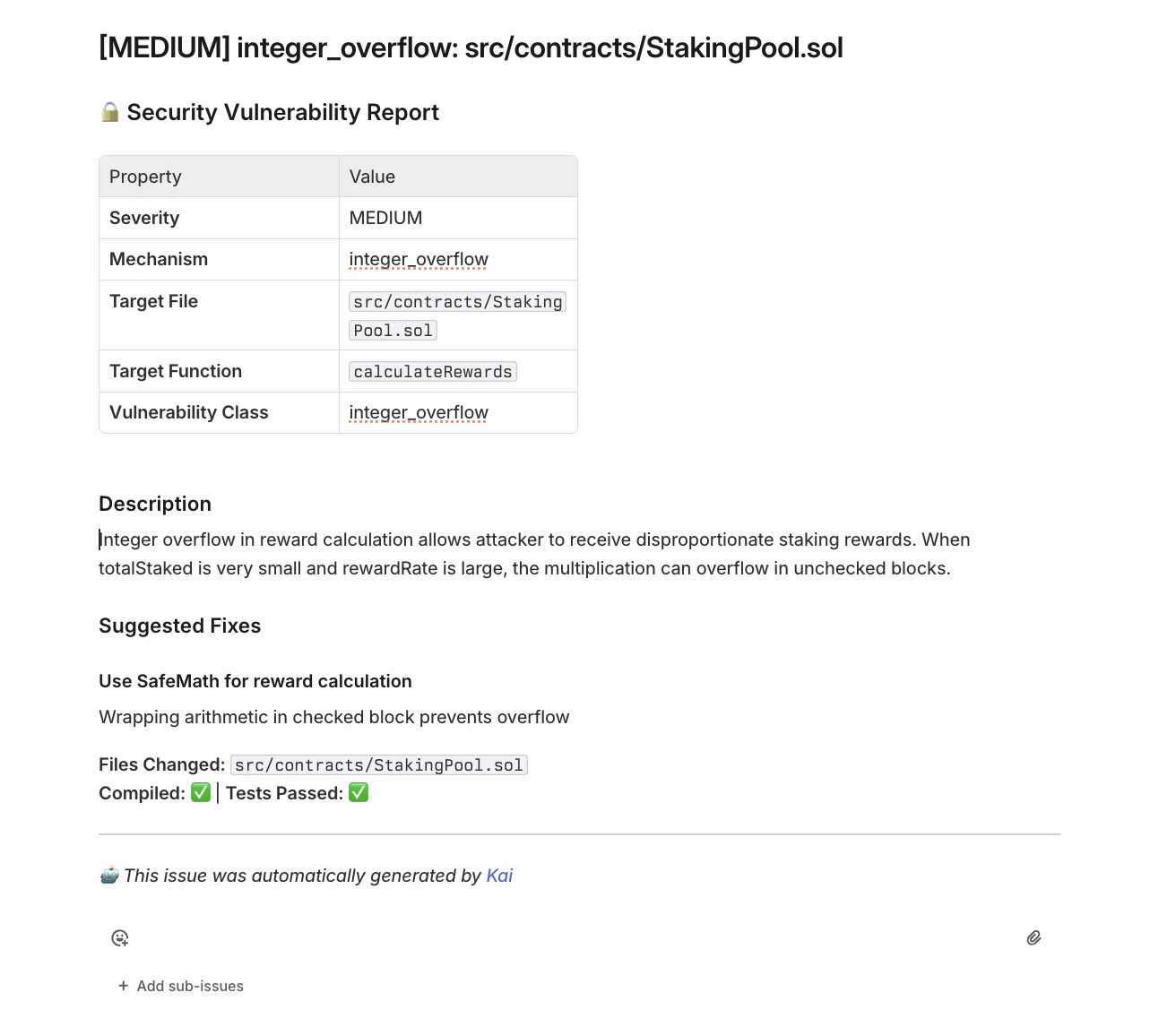
The issue is created in Linear with:
- Vulnerability title and severity
- Formatted description of the security issue
- Exploit details and attack vector
- Suggested fix with code changes
- Link back to the finding in Kai
Creating Issues from VS Code
- Open the Scan Results panel in the Kai sidebar
- Find the vulnerability you want to track
- Click the Create Issue icon on the exploit item
- Select Linear from the integration picker
- Choose the target team from your connected workspace
- Optionally select a project
- The issue is created and a link is provided
No teams showing? Make sure you’ve connected Linear from the web dashboard first. The VS Code extension uses the same connection.
Disconnecting Linear
- Go to your workspace Integrations page
- Click Disconnect on the Linear card
- Confirm the disconnection
Only workspace admins can disconnect integrations.
Disconnecting removes Kai’s ability to create issues in your Linear workspace. Existing issues that were already created are not affected.
Troubleshooting
OAuth Callback Fails
Problem: The Linear authorization page doesn’t redirect back to Kai
Solutions:
- Check your browser’s popup blocker settings
- Try using a different browser
- Ensure
kai.dria.co is not blocked by your network
No Teams Found
Problem: The team picker is empty when creating an issue
Solutions:
- Verify Linear is connected in your workspace Integrations page
- Check that your Linear account has access to at least one team
- Try disconnecting and reconnecting the integration
Issue Creation Fails
Problem: Error when trying to create a Linear issue
Solutions:
- Ensure you have permission to create issues in the target team
- Verify your Linear connection is still active in the Integrations page
- Check that the selected team and project still exist in Linear