
Managing Workspaces
Workspaces help you organize projects, control team access, and separate concerns across different teams or product lines.What is a Workspace?
A workspace is a container for:- Repositories: Code projects you want to scan
- Team Members: People who can access scan results
- Scan History: All vulnerability findings and resolution progress
- Settings: Configuration specific to this workspace
Creating a Workspace
- Click Create Workspace from the dashboard
- Enter a workspace name (e.g., “Backend Services”, “Mobile App”)
- Add an optional description
- Click Create
Managing Repositories
Adding Repositories
Within a workspace, you can add repositories for scanning: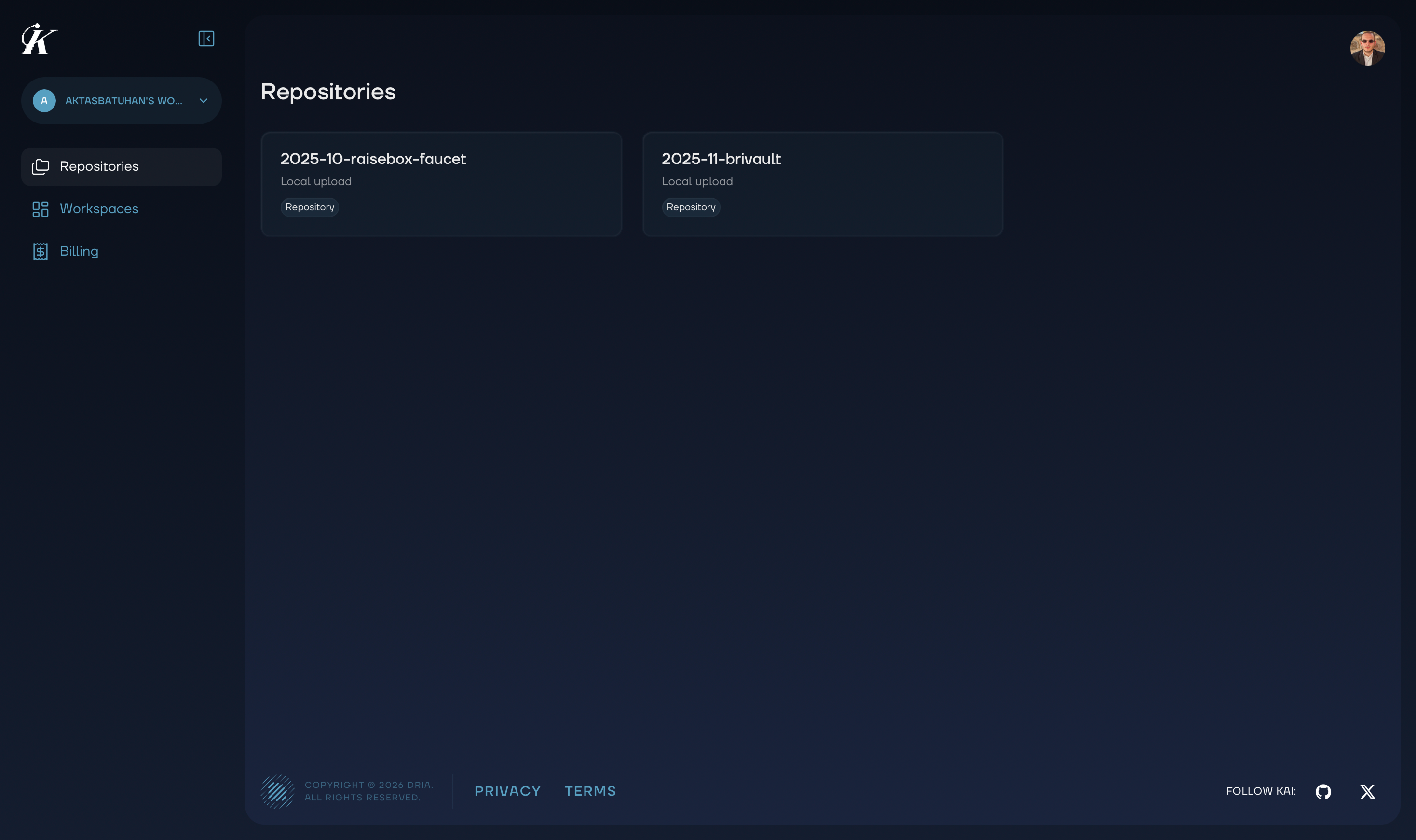
- Navigate to your workspace
- Click Add Repository
- Choose from:
- Local Upload: Upload code directly from VS Code
- GitHub Import: Connect a GitHub repository via the GitHub integration
Repository Settings
Each repository has its own:- Default scan mode preference
- File exclusion patterns
- Notification settings
- Access permissions
Workspace Organization
Best Practices
By Team: Create workspaces for each development team- “Frontend Team”
- “Backend Team”
- “Mobile Team”
- “Customer Portal”
- “Admin Dashboard”
- “API Services”
- “Production”
- “Staging”
- “Development”
Access Control
Control who can see and interact with workspace data:| Role | View Results | Run Scans | Manage Settings | Invite Members |
|---|---|---|---|---|
| Viewer | Yes | No | No | No |
| Member | Yes | Yes | No | No |
| Admin | Yes | Yes | Yes | Yes |
Switching Workspaces
Use the workspace selector in the top navigation to switch between workspaces. Your current workspace is always visible in the header.Next Steps
- Team Collaboration - Invite members and work together
- Vulnerability Management - Manage findings in your workspace
- Analytics - View workspace-specific metrics